Everything you need to configure the app and support the child day after day: an 8-step quickstart, a detailed illustrated guide, an FAQ, and direct contact with the editor. The app is 100% local, offline-first, and account-free.
Expect about 30 to 45 minutes for a full initial setup. You don't have to do everything at once: these steps can be tackled in order, or progressively as you discover the app.
1
Step 1
Admin password
Top-right padlock, create a password and store it somewhere safe. Forgot it? A reset code can be requested by email, with proof of purchase.
2
Step 2
Child profile
Home screen, '+ Create profile'. Name and avatar. Unlimited multi-profiles on a single device.
3
Step 3
Active rooms
Dashboard, 'Rooms'. Only enable the ones that match real life (Home, School, Boarding).
4
Step 4
Missions
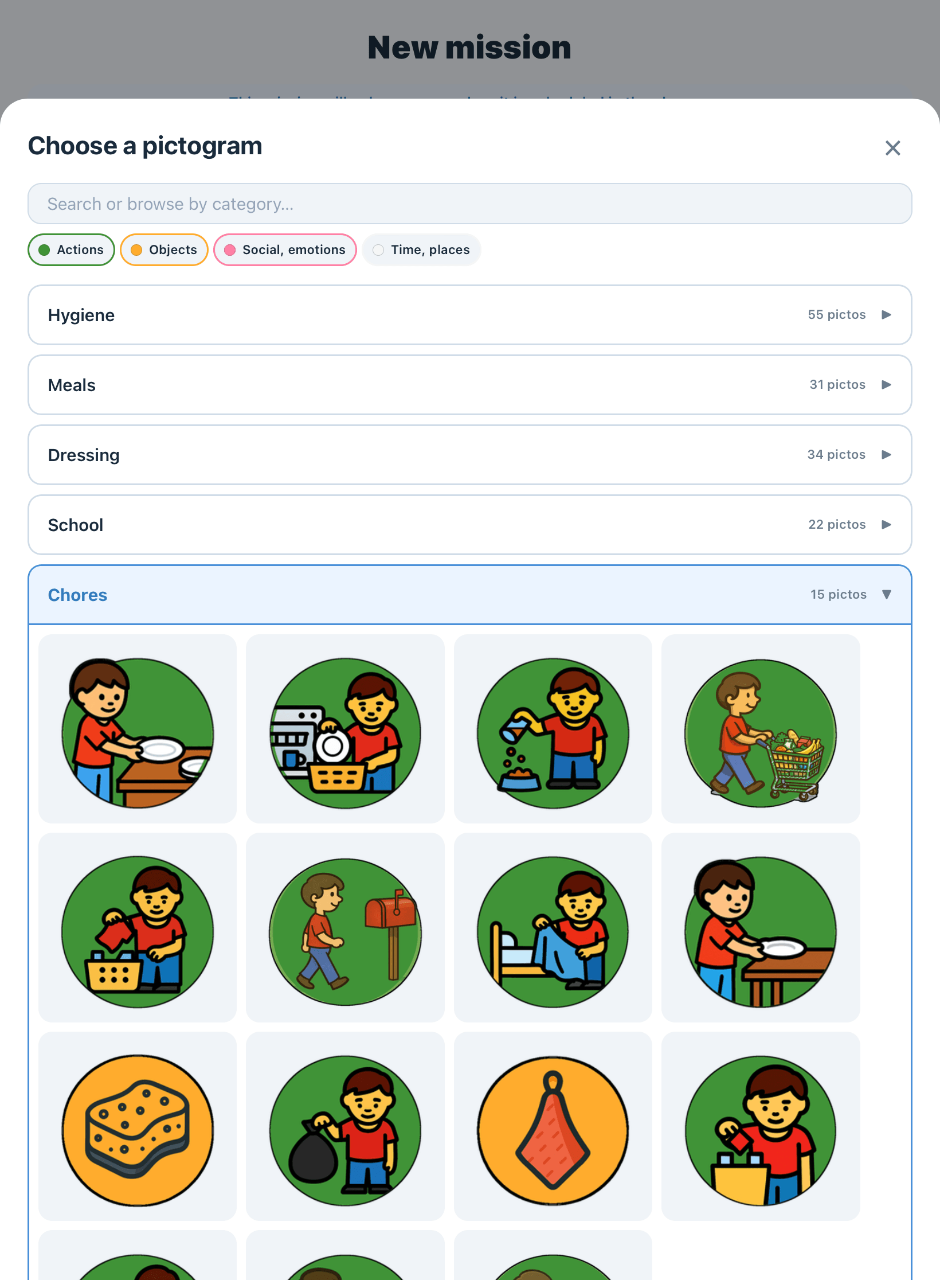
Pick the room, create the mission, break it into 3 to 8 steps, choose a Fitzgerald pictogram.
5
Step 5
Points and rewards
Optional per child. Enable via 'Progress', then create 2 or 3 rewards, cost 5 to 30 points.
6
Step 6
Weekly planner
Progress, child, Weekly planner. 2 to 5 missions per day to start. Duplicate button to save time.
7
Step 7
Extra activities
Timer, My day (5 sub-activities), Memo game, Where does this go?, Pop-it.
8
Step 8
Verify and back up
Log out, test in child mode. Then Backup, Export data (JSON file).
Downloads
The guide as a PDF, to print or archive
Two complementary documents: a single-page cheat sheet to keep next to the device, and the full 61-page guide for professionals who want to embed the app into a documented practice.
Eight structured steps that follow the logical order of a first use. Each part can be tackled independently, but we recommend following them in order the first time.
Part 1
First launch and password
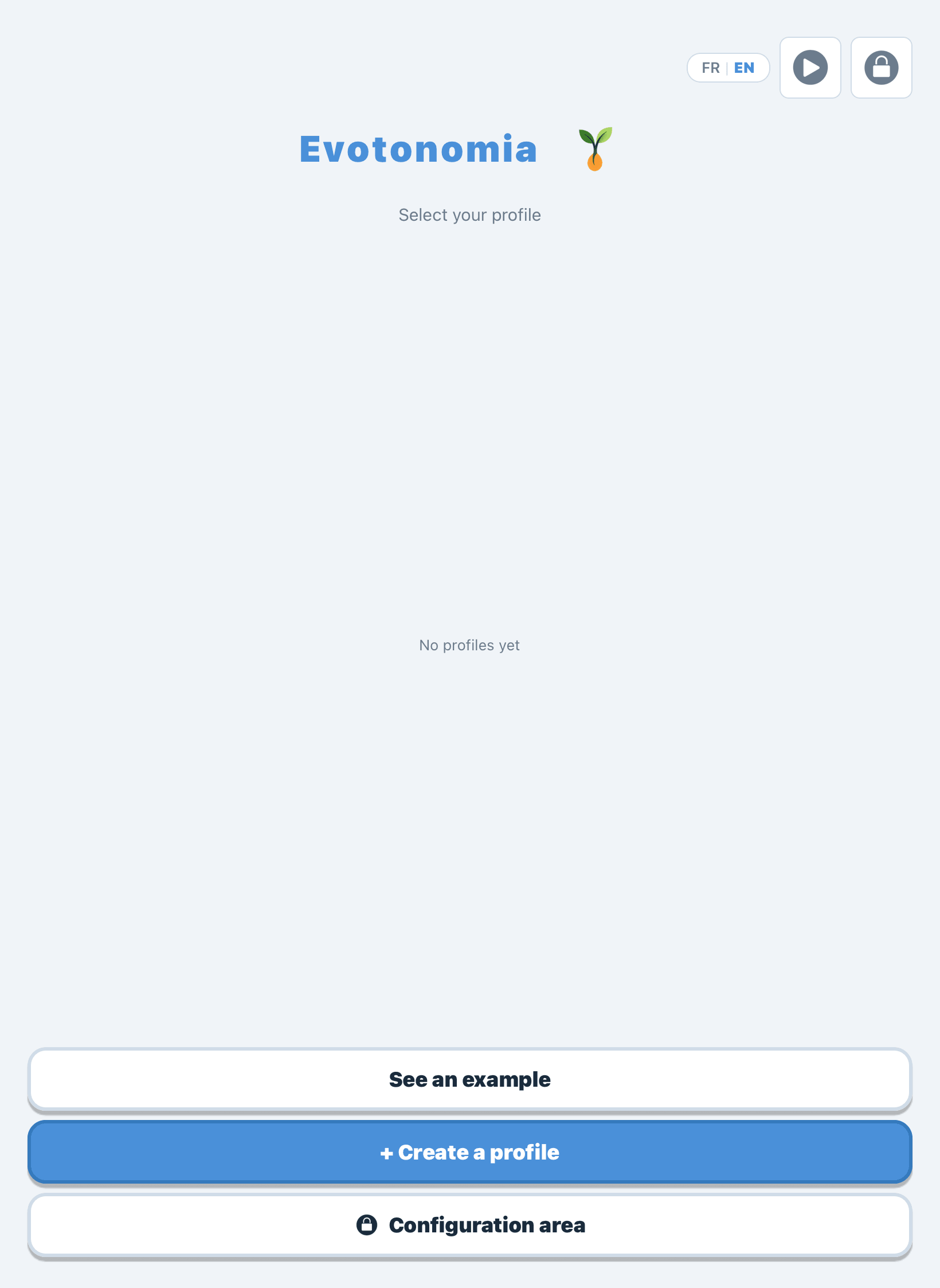
On startup, the app shows a clean screen with an FR/EN switcher and a padlock icon in the top right. Two to three minutes are enough to create the admin password that will protect the entire configuration.
1Pick the language (French or English) via the switcher in the top right. Your choice is remembered for next launches.
2Tap the padlock icon to enter the admin area.
3Type a password in the first field, confirm it in the second, then tap 'Create'.
4Write this password down in a password manager or a safe notebook before going further.
Part 2
Create a child profile
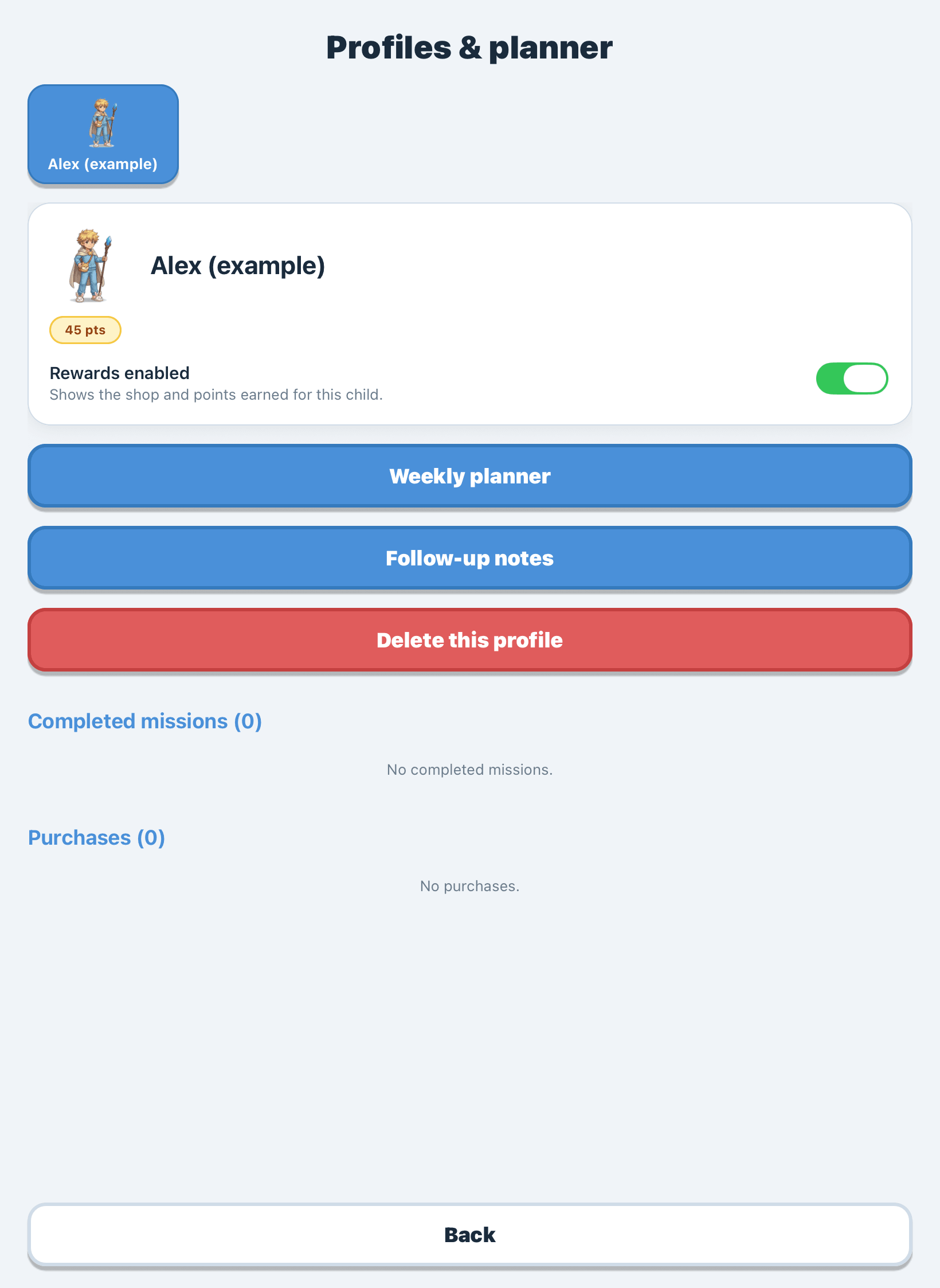
Each child has their own independent profile. This lets you separately customise missions, points, rewards, follow-up notes and the weekly planner for every child you support.
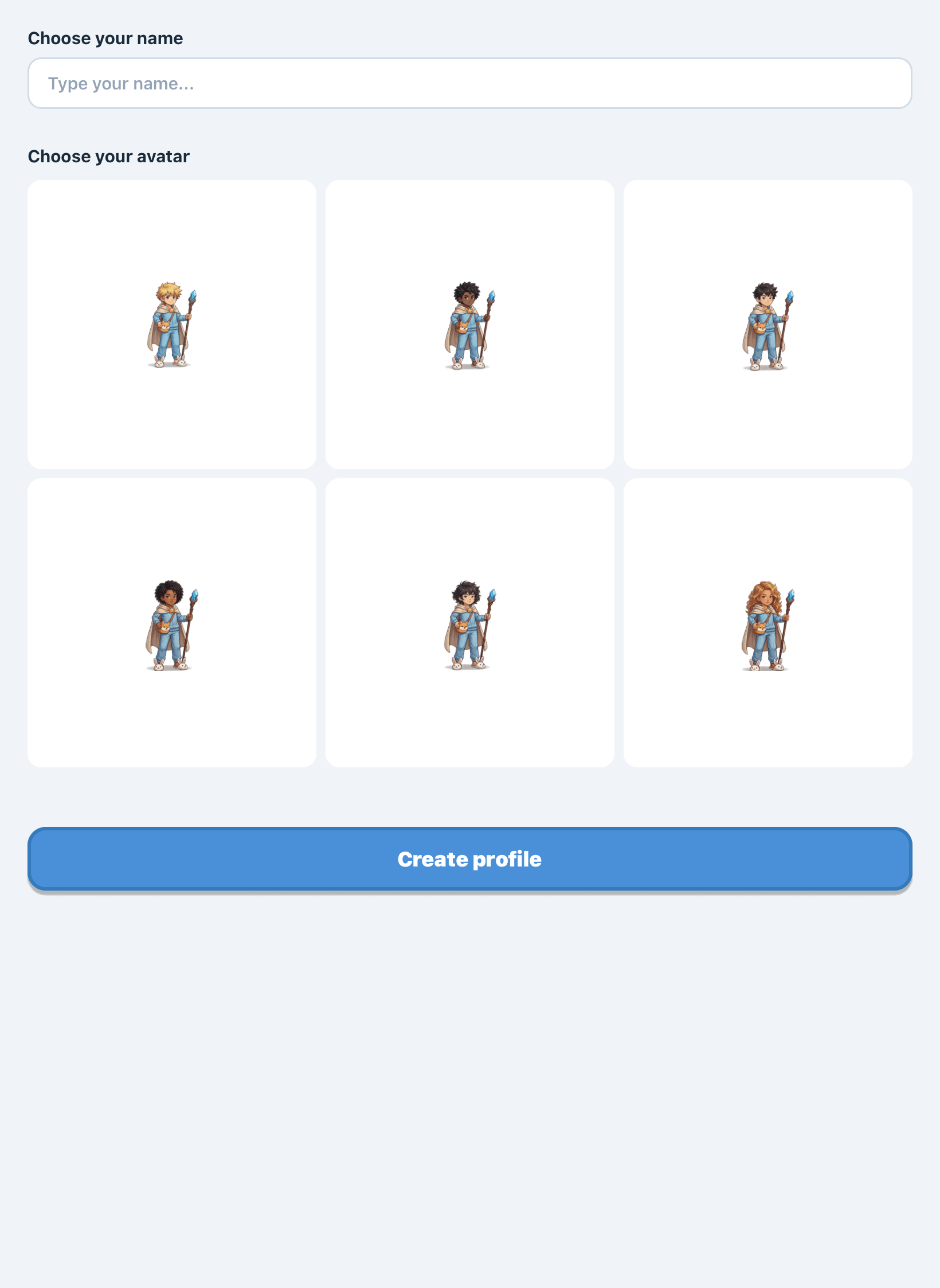
1On the home screen, tap the '+ Create profile' button at the bottom.
2Type the child's first name (or a pseudonym in an institutional setting) and pick an avatar from the gallery.
3Tap 'Create profile'. The profile appears immediately on the home screen as a clickable card.
Part 3
Rooms and buildings
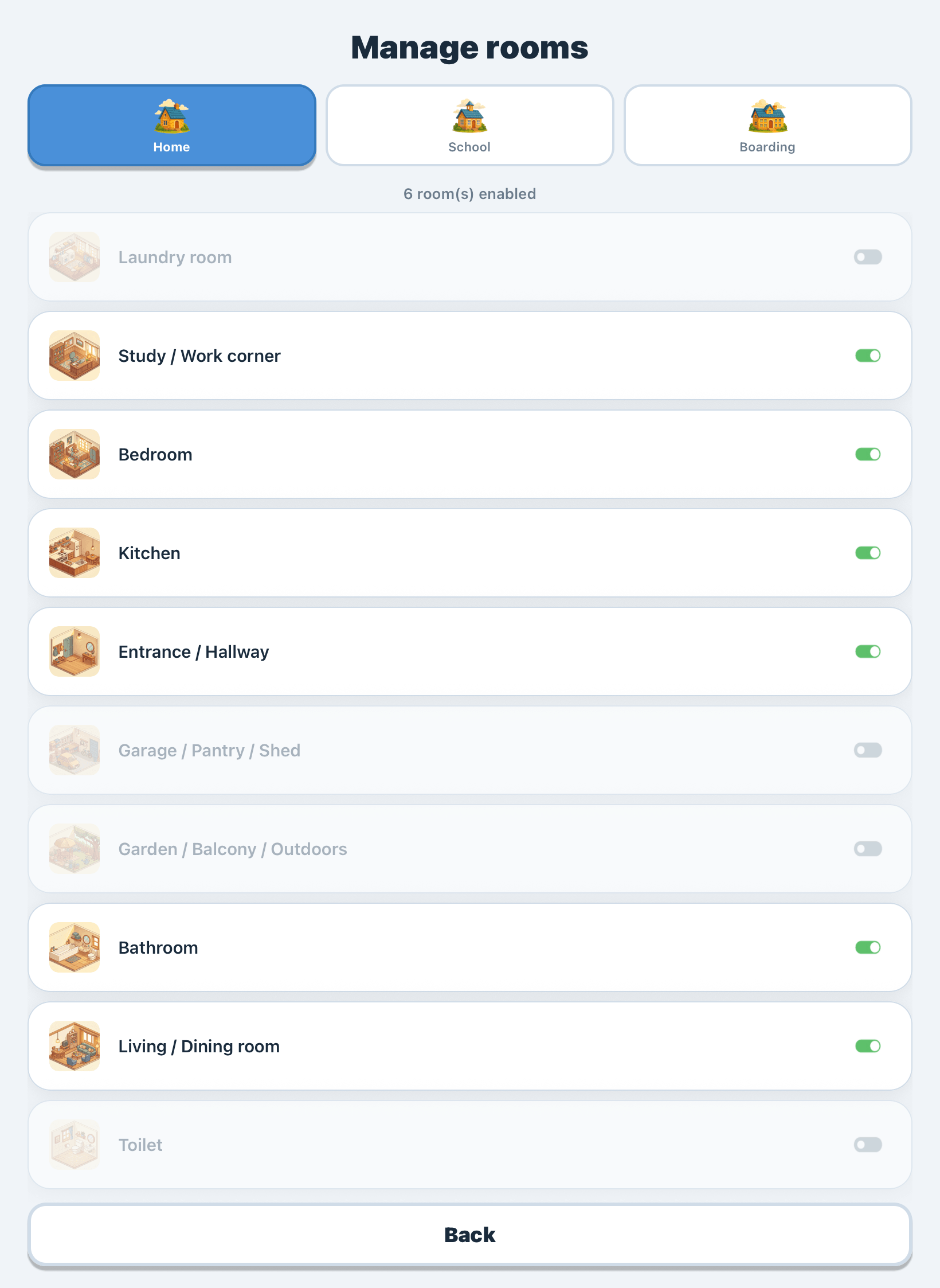
The app structures daily life into three buildings: Home, School, Boarding. Each building is split into rooms (bedroom, kitchen, classroom, infirmary, etc.). Only enable those that match the child's real life.
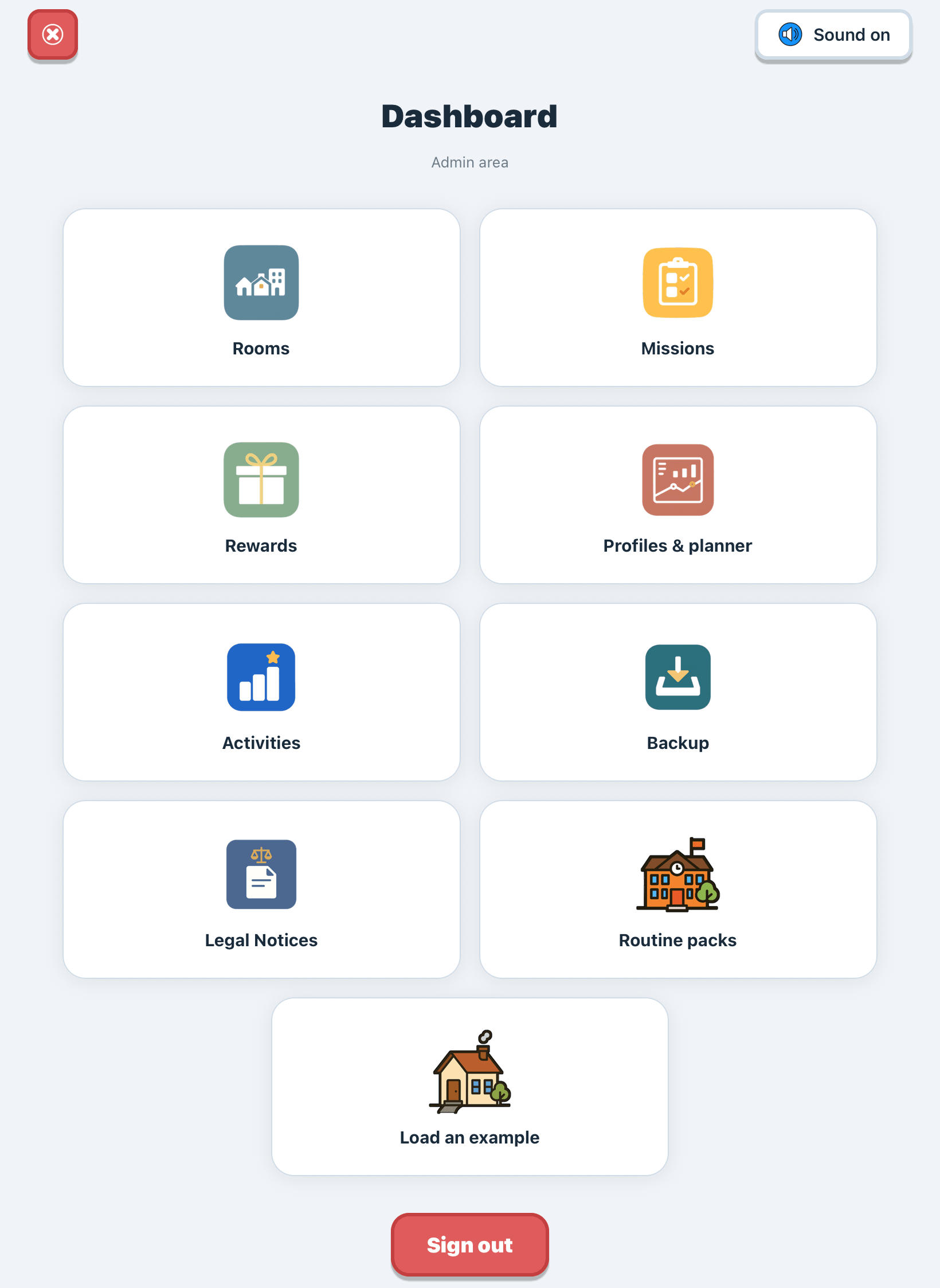
1From the admin dashboard, tap 'Rooms'.
2Pick the building tab at the top: Home, School or Boarding.
3For each room, toggle the switch (green = enabled, grey = disabled). The counter shows how many rooms are active.
4If you disable every room in a building, that building automatically disappears from the child interface.
Part 4
Configuring missions
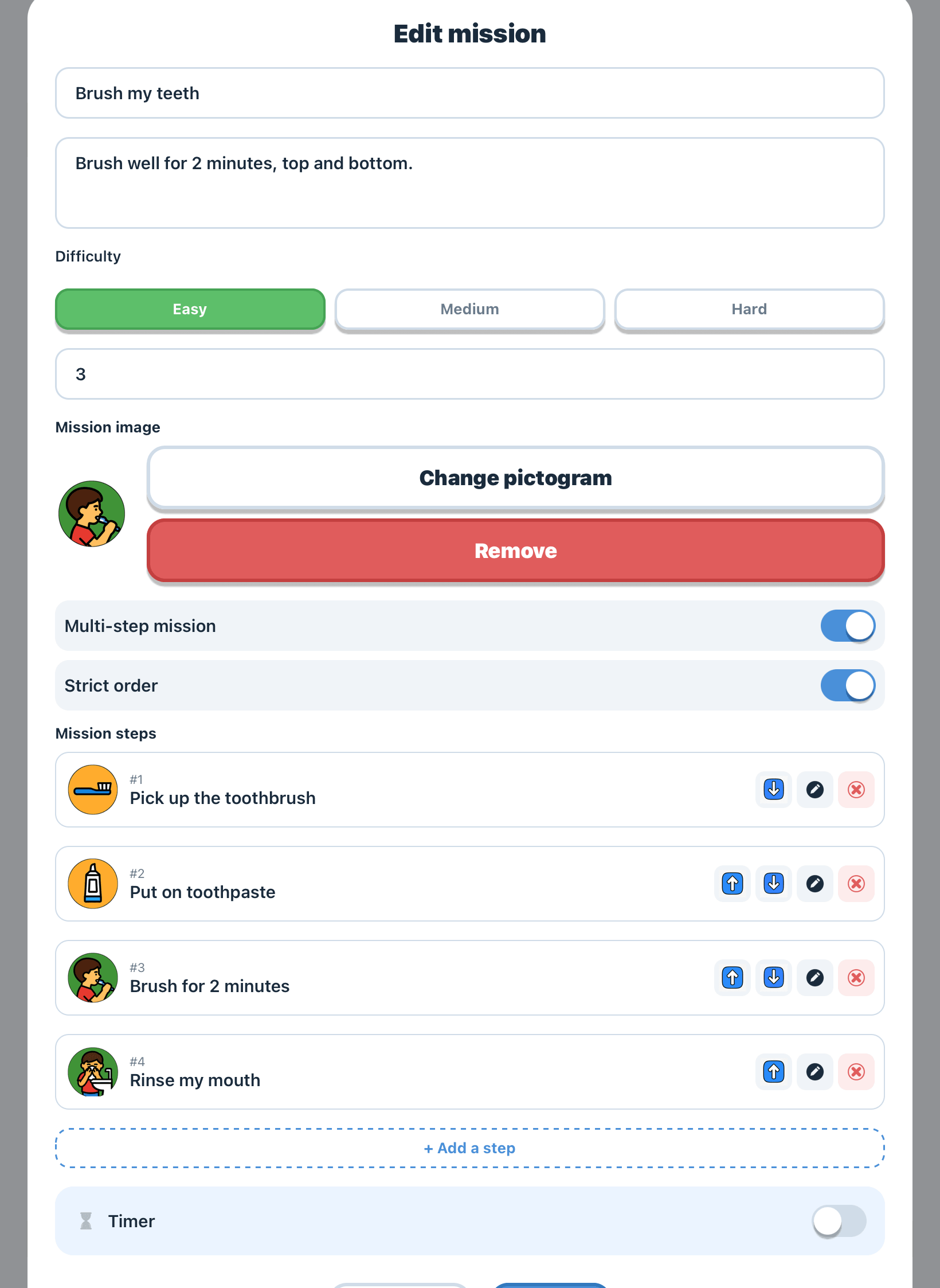
A mission represents a daily activity: brushing teeth, leaving for school, tidying a bedroom. Each mission can be atomic or broken down into several successive steps illustrated with pictograms.
1From the dashboard, tap 'Missions'.
2Pick a tab (Home, School, Boarding or Cross-context), then the destination room.
3Tap '+' to create a new mission. Use a short action verb ('Brush your teeth' rather than 'Toothbrush').
4Choose the difficulty (Easy, Medium, Hard), a pictogram from the AAC library, and enable the timer if needed.
5If the mission has several steps, turn on 'Multi-step mission' and add each step in the desired order (strict or free).
6Save. The mission becomes available to the child on the next exploration.
Part 5
Points and rewards
The points system is optional, and can be enabled per child. When active, each validated mission credits points that can be exchanged for concrete rewards you define ahead of time in the shop.
1From 'Progress', pick the child and turn on 'Rewards enabled'.
2Return to the dashboard and tap 'Rewards'.
3Create 2 or 3 rewards with a concrete label ('Trip to the park'), a point cost and an icon.
4Calibrate the cost: aim for 1 to 3 days of effort for the first reward, then adjust after a few days of observation.
Part 6
Weekly planner
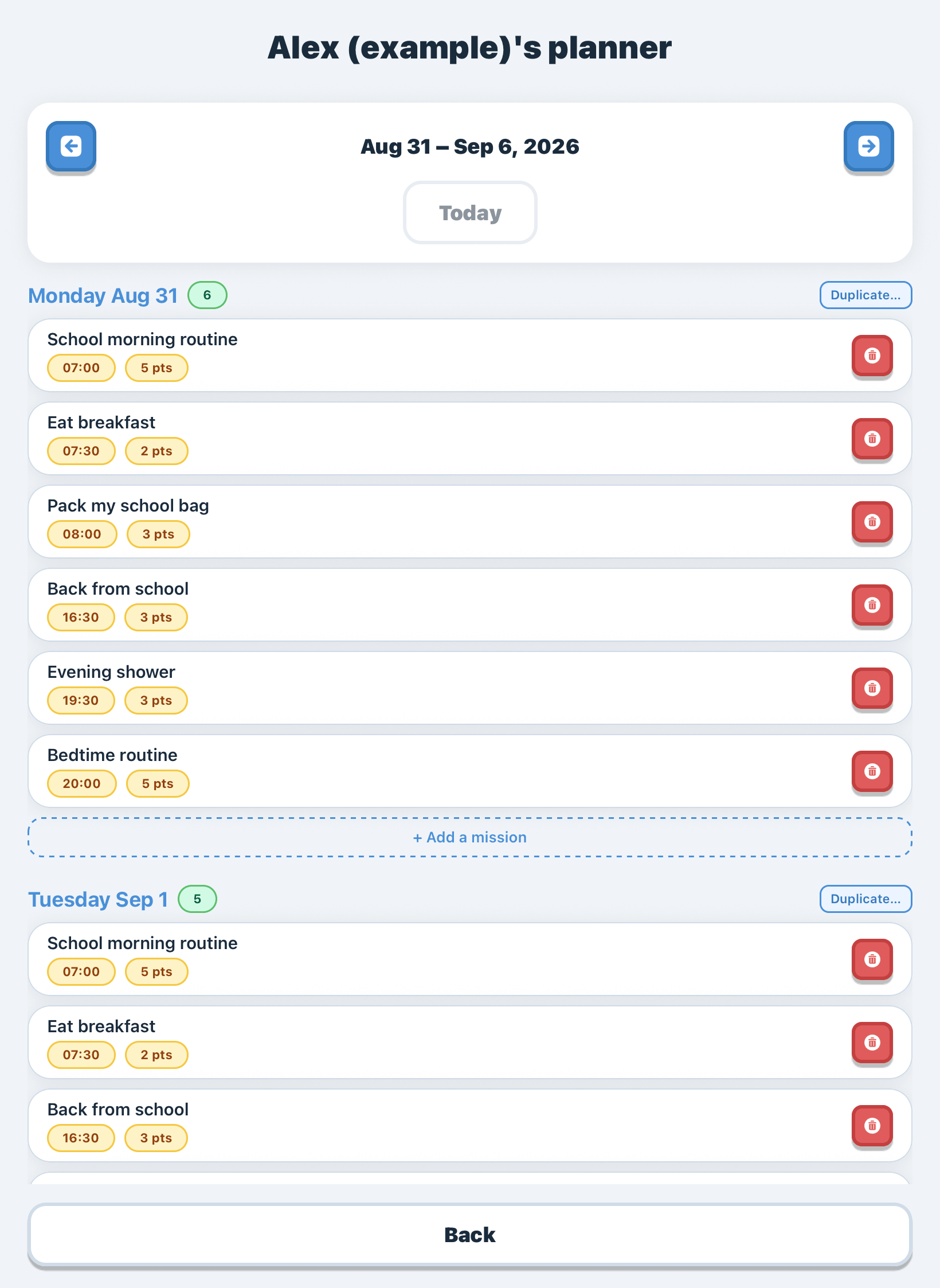
The planner makes time visible. You assign missions to specific days and times; the child finds them in their 'My planner' screen, with a marker on the current day.
1From 'Progress', pick the child and tap 'Weekly planner'.
2Under the relevant day, tap '+ Add a mission'.
3Choose the mission and enter its planned time (for example 7:30 for 'Wake up and good morning').
4Use the 'Duplicate' button to copy one day's content onto another. It's the fastest way to build a template week.
Part 7
Extra activities
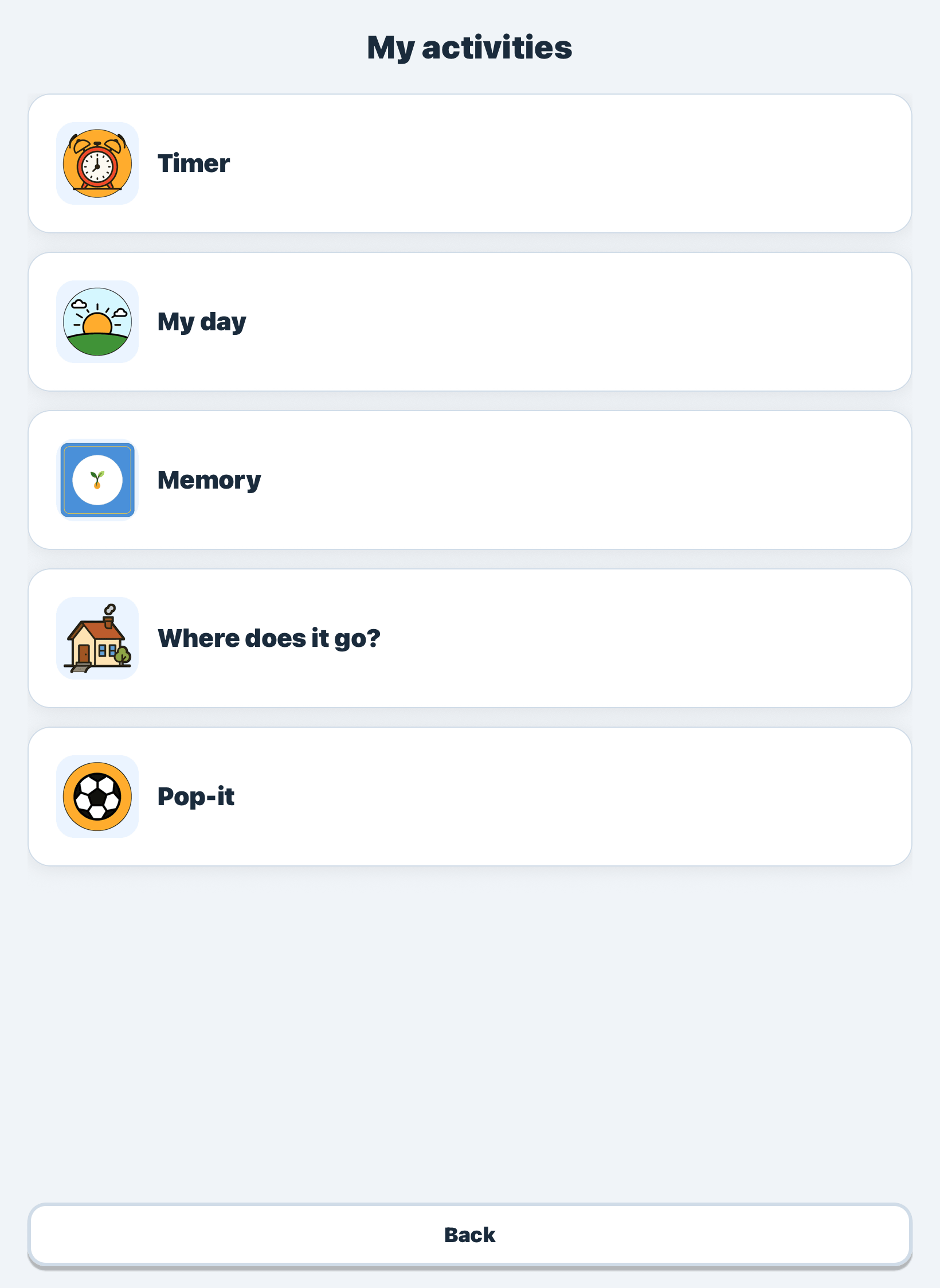
Beyond missions and the planner, the app offers five complementary activities accessible from the child's 'My activities' screen. They are enabled or disabled individually, with no impact on the rest of the configuration.
1Timer: a circular countdown that makes time visible. Available by default, no setup needed.
2My day: a morning ritual in five sub-activities (date, season, weather, outfit choice, mood).
3Memo game: a classic memory game with three levels (4, 8 or 12 pairs).
4Where does this go?: a mini spatial-categorisation game where the child puts objects in the right room. It's the activity that requires the most setup.
5Pop-it: a sensory decompression zone with no score and no stakes, useful before a demanding mission or between two frustrating steps.
Part 8
Verify and back up
Before handing the app over to the child, switch to child mode to check that everything is in place. Then export a JSON backup to secure your configuration.
1From the dashboard, tap 'Log out' (red button) to return to the home screen.
2Tap the child's profile and browse the app as the child would: avatar, planner, room exploration, activities.
3If you spot something off (missing mission, missing pictogram, empty planner), go back to admin mode and fix it from the relevant management screen.
4Back on the dashboard, tap 'Backup' then 'Export data'. The JSON file contains your entire configuration.
AAC library
The Fitzgerald colour code, readable at a glance
Evotonomia's full pictogram library follows the Fitzgerald code, a standard of Augmentative and Alternative Communication used by speech and language therapists for decades. The child reads the colour first, the content second.
TabColourCategoryExamples
ActionsGreenVerbs and actionseat, sleep, tidy, brush, open
ObjectsOrangeCommon nouns and objectsbackpack, brush, soap, trousers, book
SocialPinkEmotions and socialhappy, angry, sad, tired, calm
Frequently asked questions
The most common questions
If you can't find your answer here, write to us. We typically reply within 48 working hours.
01.I forgot my admin password, what should I do?
The app runs entirely offline: no server knows your password, so it cannot be recovered as such. You can, however, request a reset code to create a new one without losing the child's data. For security and privacy reasons, this code is reserved for the owner: write to pierre.guillaume@evotonomia.be and attach a screenshot of your proof of purchase. Once we have checked it, we send you the code and the steps to follow.
02.What data does the app collect?
None. Evotonomia creates no account, sends nothing over the Internet, and embeds no tracker or advertising. All data (profiles, missions, points, planner) stays in a local SQLite database on the device, and is removed on uninstall. Full details in our privacy policy.
03.How do I change the app language?
On the home screen, tap the FR / EN switcher in the top right. It switches the whole interface, including the AAC pictogram library. You can change language at any time without losing your data.
04.How do I export or import my configuration?
In the admin dashboard, tap 'Backup' then 'Export data'. The app produces a JSON file with your full setup. To import, tap 'Import backup' and select the file. Note: import overwrites the current configuration; your current admin password is preserved.
05.A mission doesn't appear on the child side, why?
Check that the room containing the mission is enabled (Dashboard, Rooms). A mission attached to a disabled room stays in the database but is hidden from the child. Re-enable the room and the mission reappears automatically.
06.How do I disable rewards for a single child?
From 'Progress', pick the child and turn the 'Rewards enabled' switch grey. The shop and points counter then disappear from the child interface. Missions still validate normally, just without crediting points.
07.How can I share the planner with school or another parent?
The app has no cloud sync. To share, use the JSON backup (full configuration) or, coming in a future release, the planner PDF export. In the meantime, a screenshot of the planner does the job nicely.
08.Does the app work without an Internet connection?
Yes, fully. Evotonomia only needs a connection for the initial download from the store. After that, every feature (missions, planner, activities, backups) runs locally, including in airplane mode. Useful in classrooms, on public transport, or in patchy-connection areas.
Password and backup, don't forget
The admin password is hashed locally (bcrypt) and never stored in plain text. No server knows it, so it cannot be recovered. If you forget it, you can request a reset code to create a new one without losing the child's data.
For security and privacy reasons, this code is reserved for the owner: write to pierre.guillaume@evotonomia.be and attach a screenshot of your proof of purchase. It's still wise to export a JSON backup regularly, the quickest way to bounce back if anything ever goes wrong.
Write the password down in a password manager or a safe notebook.
Export a JSON backup after initial setup.
Export again after every major change.
Couldn't find your answer?
Write to us. Every message is read, and most of them influence what ships in the next release.