
Evotonomia+ tutorial · Tutorial 2 of 15
Find your way around the Menu
Updated on November 9, 2026Version 1.1 of the app
What is it for?
The Menu is your home page: it shows at a glance where you are today. Each bubble opens a part of the app.
What you see
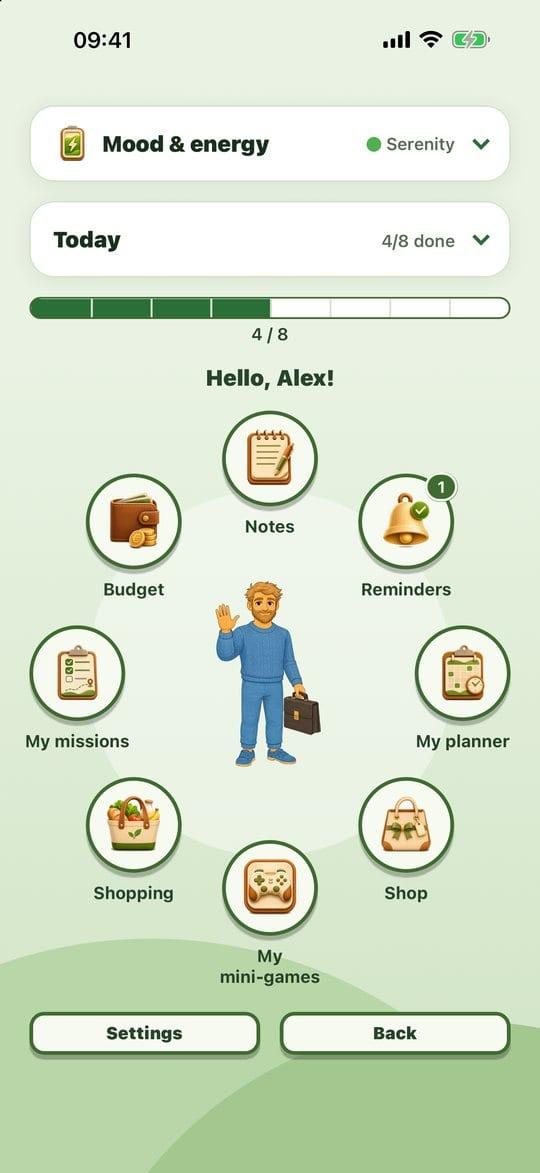
- Mood & energy (at the top): the emotion wheel and your history. See the "Mood and energy" tutorial.
- Today: how many missions you have done today (for example "3/7 done").
- The bar: it fills up one notch for each mission done.
- The bubbles around your avatar: My missions, My planner, Budget, Notes, Reminders, Shopping, My mini-games, and Shop if you turned it on.
- Settings and Back (at the bottom). Back takes you to the profiles screen.
Steps
Tap Today to open it. You see what's next up with a Start button, then your day's list, missions at a set time first.

The Today panel Tap Start to jump straight into the next mission.
Tap Today again to close it and get your bubbles back.
Swipe sideways across the ring: the bubbles turn and settle into place. Handy for bringing a bubble under your thumb.
Little signs worth knowing
- A number badge on Reminders: some doses are past and not ticked yet.
- "0/1" on My mini-games: one planned mission is left today before the games open.
Practical tips
- Keep "Today" closed if the list feels like too much: the number is enough. Open it only to know what to do now.
- One button to remember: Start. No need to choose among everything: the app suggests what comes next.
- Every bubble stays tappable even if you never turn the ring.
Evotonomia+ is an organisation tool. It gives no medical advice and does not replace the opinion of a health professional. Understand how your data is protected